Inventory
À l'issue de ce chapitre
- structure a warehouse into locations and choose the number of steps in your flows;
- process receipts and deliveries, including partial ones;
- set up automatic replenishment;
- carry out a physical count and trace a product by lot or serial number;
- understand stock valuation and its accounting consequences.
The Inventory application tracks stock quantities, orchestrates receipts and deliveries, organises the warehouse into locations and puts a financial value on the goods held.
Configuring inventory
Inventory › Configuration › Settings gathers some thirty options grouped into thematic blocks. Not all of them concern every organisation: the list below points out those that shape the way the application works, and those you can leave aside at the outset.
Operations
| Option | What it brings |
|---|---|
| Packages | Groups goods into an identified container (a sealed box, a wrapped pallet) whose contents are tracked through the successive operations. |
| Batch, Wave & Cluster Transfers | Groups several pickings into a single round for the operator, instead of one round trip per order. |
| Picking Policy | Sets the default behaviour on orders: Ship products as soon as available, with back orders or Ship all products at once. |
| Partner-Specific Instructions | Displays on the operations an instruction specific to the customer or the vendor: dock hours, access, on-site contact. |
| Reception Report | On receipt, shows which pending sales orders the goods can be allocated to. |
| Annual Inventory Day and Month | Sets the reference date of the annual count, to which the cyclic counts are attached. |
| Quality | Inserts control points into the transfer operations. Belongs to a separate application. |
Shipping
| Option | What it brings |
|---|---|
| Delivery Methods | Computes and invoices shipping costs, from rate tables or through a connection to a carrier. |
| Email Confirmation | Notifies the customer by email when the delivery order is validated. |
| Text Confirmation | Does the same by SMS. Consumes credits. |
| Signature | Asks for a signature on handover, kept with the delivery order. |
A Shipping Connectors block then offers the carrier integrations. They compute the costs at the carrier's real rates, print the labels and bring back parcel tracking.
Four points set them apart from the other settings.
They all belong to the Enterprise edition. None is available in Community, where shipping is invoiced through the rate tables of the Delivery Methods.
Not all of them are activated here. Some appear without a checkbox, accompanied by the note (please go to Home>Apps to install): they are installed from Apps, not from this screen.
Several are specific to a country or an area. bpost addresses companies established in Belgium, USPS those operating in the United States, Envia.com Mexico and the United States. Activating a connector outside its area brings nothing: the rates and the services offered do not cover the shipment.
Each one assumes a contract with the carrier, along with credentials for its technical interface. The connector does not create the commercial relationship, it builds on it.
Point d'attention
Several carriers have renewed their technical interface, and for some of them Odoo ships two modules: the old one, kept for the databases still using it, and the new one. The credentials are not interchangeable between the two.
Before installing a connector, check in Apps that you are indeed picking the current version: the one whose description does not mention a legacy module to be replaced.
Traceability
| Option | What it brings |
|---|---|
| Lots & Serial Numbers | Activates upstream and downstream traceability. Essential in food, pharmaceuticals, cosmetics and for any product subject to recall. |
| Consignment | Allows you to hold stock belonging to a third party, or to leave stock at a customer's premises, without transfer of ownership. |
Warehouse
| Option | What it brings |
|---|---|
| Storage Locations | Subdivides the warehouse into zones, aisles and locations. Without it, stock is known by warehouse, with no finer positioning. |
| Multi-Step Routes | Allows receipt and delivery flows in several steps: quality control, picking then shipping. |
Point d'attention
Storage Locations is a prerequisite for Multi-Step Routes. Activate both if you plan a quality control on receipt or a picking step separate from shipping.
These two options are easy to switch on and hard to switch off: the documents created in the meantime carry locations and steps that would no longer make sense.
Advanced Scheduling
These three settings shift the dates computed by Odoo in order to absorb the unexpected.
| Setting | Effect |
|---|---|
| Replenishment Horizon | How far ahead future needs are analysed, in days. A wide horizon anticipates the orders already known; a short horizon sticks to what is urgent and keeps stock down. |
| Security Lead Time for Sales | Brings pickings forward by a number of days, to keep a margin ahead of the date promised to the customer. |
| Days to Purchase | Time needed to confirm a purchase order, added to the vendor lead time. |
The blocks covered elsewhere
- Barcode: activates the Barcode Scanner and the associated scanning settings.
- Products: Variants and Units of Measure & Packagings, covered in chapitre 9.
- Valuation: Landed Costs, to add an extra transport or customs cost to the value of the product (see section 15.8).
- Logistics: Dropshipping and Replenish on Order (MTO), covered in chapitre 10.
Astuce
At the outset, activate only what you are certain to use. Every option adds fields, screens or steps, and the initial simplicity makes the tool easier to take on. The settings can be added later as needs arise, with nothing to redo.
Structuring the warehouse
Creating a warehouse
- Open Inventory › Configuration › Warehouse Management › Warehouses.
- Click on New.
- Fill in the name, the short name: two to five characters, carried into every transfer reference , and the address.
- Save.
The warehouse record also carries the number of steps of its receipts and of its deliveries. That is the setting which governs the shape of the flows, and through them the number of documents created at each movement: it is covered in chapitre 16, together with the routes it puts in place.
Organising the locations
- Open Inventory › Configuration › Warehouse Management › Locations.
- Create the hierarchy matching the physical organisation: zones, aisles, bays, levels.
- Provide for the service locations: receipt, quality control, output, quarantine, scrap.
Astuce
Adopt a location naming scheme that is legible and regular, of the type
ZONE/AISLE/BAY/LEVEL. It determines picking speed and the quality of the cyclic
counts.
Note
Once the locations are created, two mechanisms automate their use: the putaway rules, which direct incoming goods to the right location, and the removal strategies, which determine which stock to draw from on the way out. They are covered in chapitre 16.
Receiving
The three-step flow
When the warehouse is configured in three steps, the goods pass successively through:
- Receipt: the delivered quantities are recorded and placed in the input location.
- Quality control: the goods are transferred to the control area and checked. If they are not compliant, they go back to the vendor or into quarantine.
- Storage: the accepted goods join the storage locations and become available.
Each step is validated independently. The Next Transfer smart button, at the top of the document, opens the next step directly without going back through the menus.
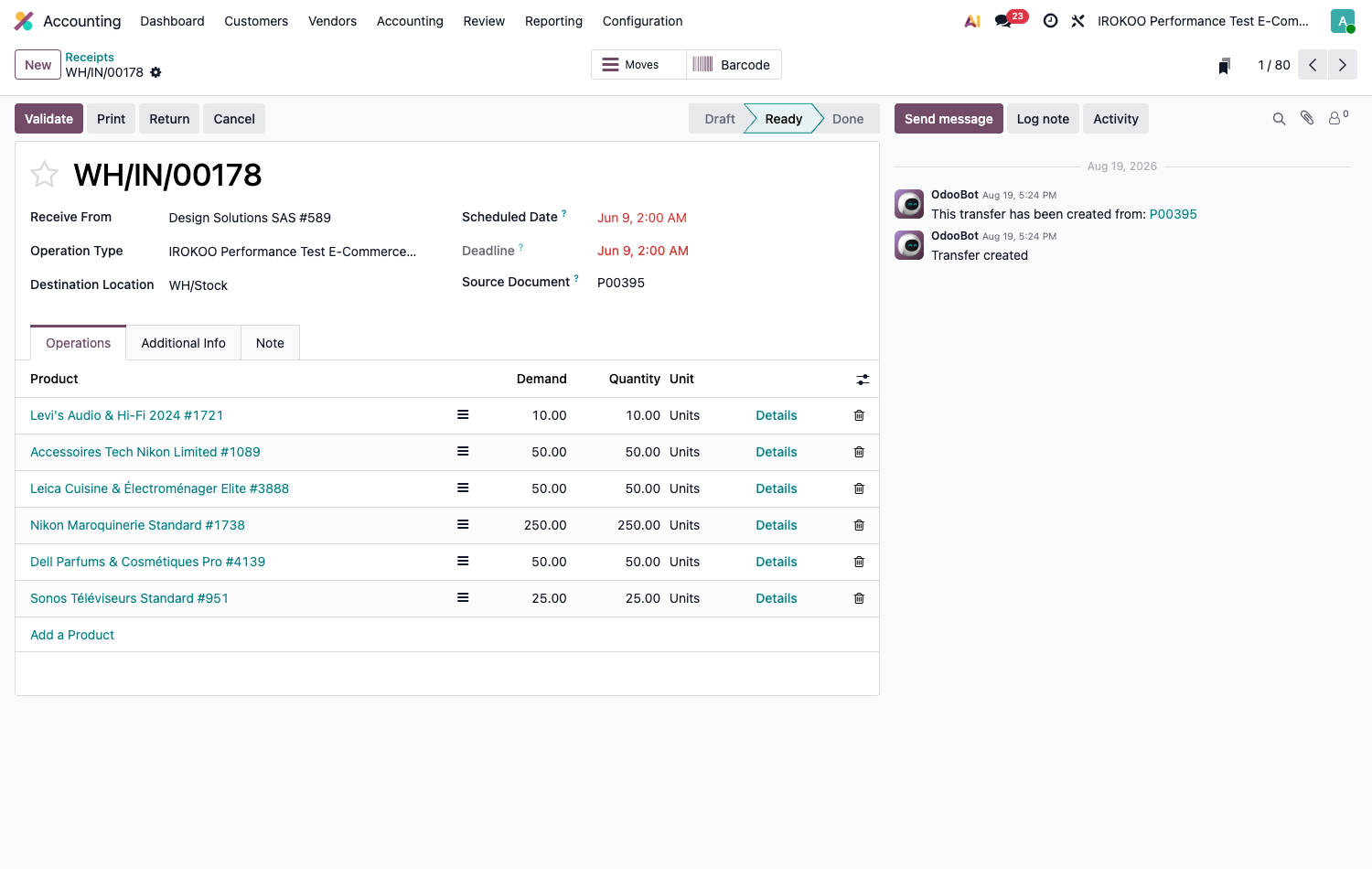
Partial receipt
Enter the quantities actually received, then validate. Odoo offers to create a backorder for the missing quantities, which stays pending until the follow-up delivery.
Shipping
The two-step flow
- Picking: the items are picked from the storage locations and gathered in the output area.
- Delivery: the parcel is made up, the transport documents are printed, the goods leave.
Astuce
Reach the transfers from the sales order rather than from the Transfers menu: you then see only the movements linked to that order, which removes the risk of validating the wrong document.
Partial delivery
Enter the quantities actually shipped and validate. The backorder created lets you track what remains to be delivered, and the sales order stays open as long as quantities are still due.
Replenishing
The replenishment screen, the reordering rules and their trigger are described in section 10.5.1. What follows completes that configuration with the question of lead times, which belongs to logistics.
Triggering at the latest moment
Odoo does not order as soon as the threshold is crossed: it computes the date at which the supply must be launched for the goods to arrive on time, by adding up the lead times along the chain, vendor lead time, manufacturing lead time, internal receipt lead time.
For a product whose total lead time is five days and whose need falls in ten days, the order is launched after five days, not immediately.
Note
This behaviour keeps tied-up stock down, but it assumes realistic lead times. If your vendor lead times are irregular, add a safety margin to the declared lead time rather than give up the mechanism.
Lead times are set at three levels: the vendor lead time, in the Purchase tab of the product record; the manufacturing lead time, on the bill of materials; the warehouse safety lead times, in Inventory › Configuration › Settings.
Counting stock
Carrying out a physical count
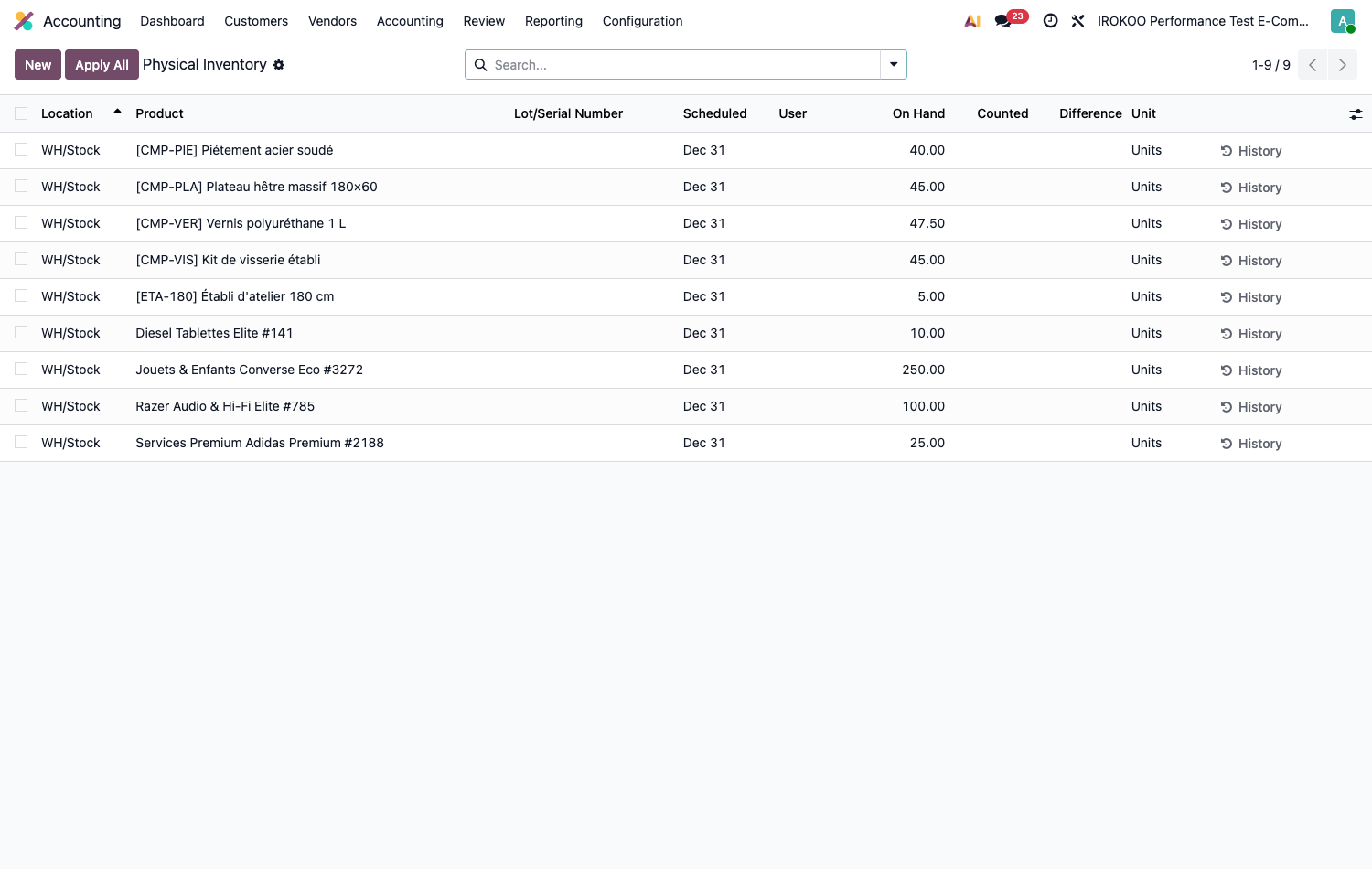
- Open Inventory › Operations › Adjustments › Physical Inventory.
- Filter on the locations or the products to be counted.
- Enter the quantities counted in the Counted column: the Difference column computes itself.
- Click on Apply to adjust the stock.
Point d'attention
Applying an inventory generates accounting adjustment entries. On a live database, this operation is planned with the accountant, on a controlled date.
Note
The screen only lists the products that have a movement history, including those whose quantity is negative. A product created but never received does not appear there as long as no line exists: to give it an opening stock, click on New in this screen, choose the product and the location, enter the counted quantity, then apply.
Cyclic counts
Rather than one full annual count, part of the warehouse is counted at a time, at regular intervals. The workload is spread over the year and the quantities stay reliable at all times, without bringing the business to a halt for a whole day.
The frequency is set per location, on the record of each one.
- Open Inventory › Configuration › Warehouse Management › Locations.
- Open the location concerned.
- Fill in the Inventory Frequency, in days:
30for a monthly count,90for a quarterly one. - Save.
Odoo then computes the Next Expected date from the Last Inventory and the frequency. Each count applied updates the date of the last inventory, and the next one is recomputed by itself: the schedule maintains itself without intervention.
The counts due show up in the physical inventory screen, where a filter on the scheduled date isolates what is to be done.
Note
A frequency left at zero (the default value) disables the mechanism for that location. The setting is moreover only meaningful for internal and transit locations: it has no effect on the virtual vendor or customer locations.
Astuce
Match the frequency to what is at stake rather than applying it uniformly. Locations with high turnover or high value are worth counting every month; dormant stock areas are content with one annual pass. That is the very principle of cyclic counting: concentrate the effort where the discrepancy costs.
Note
The reference date of the annual count is set separately, through Annual Inventory Day and Month, in the application settings.
Taking unusable goods out of stock
- Open Inventory › Operations › Adjustments › Scrap.
- Click on New.
- Select the product, the quantity and the reason.
- Validate.
The quantity leaves the available stock and joins a scrap location. The corresponding value is taken out of the stock valuation and recognised as an expense.
Tracing products
Activating traceability
- Open the product record, General Information tab.
- Choose the Tracking mode: - By Lots: for products manufactured or received in homogeneous groups; - By Unique Serial Number: for unit-by-unit tracking.
- Save.
Using lots day to day
On receipt as in manufacturing, Odoo asks for the lot or serial number. On delivery, the lots actually shipped have to be designated.
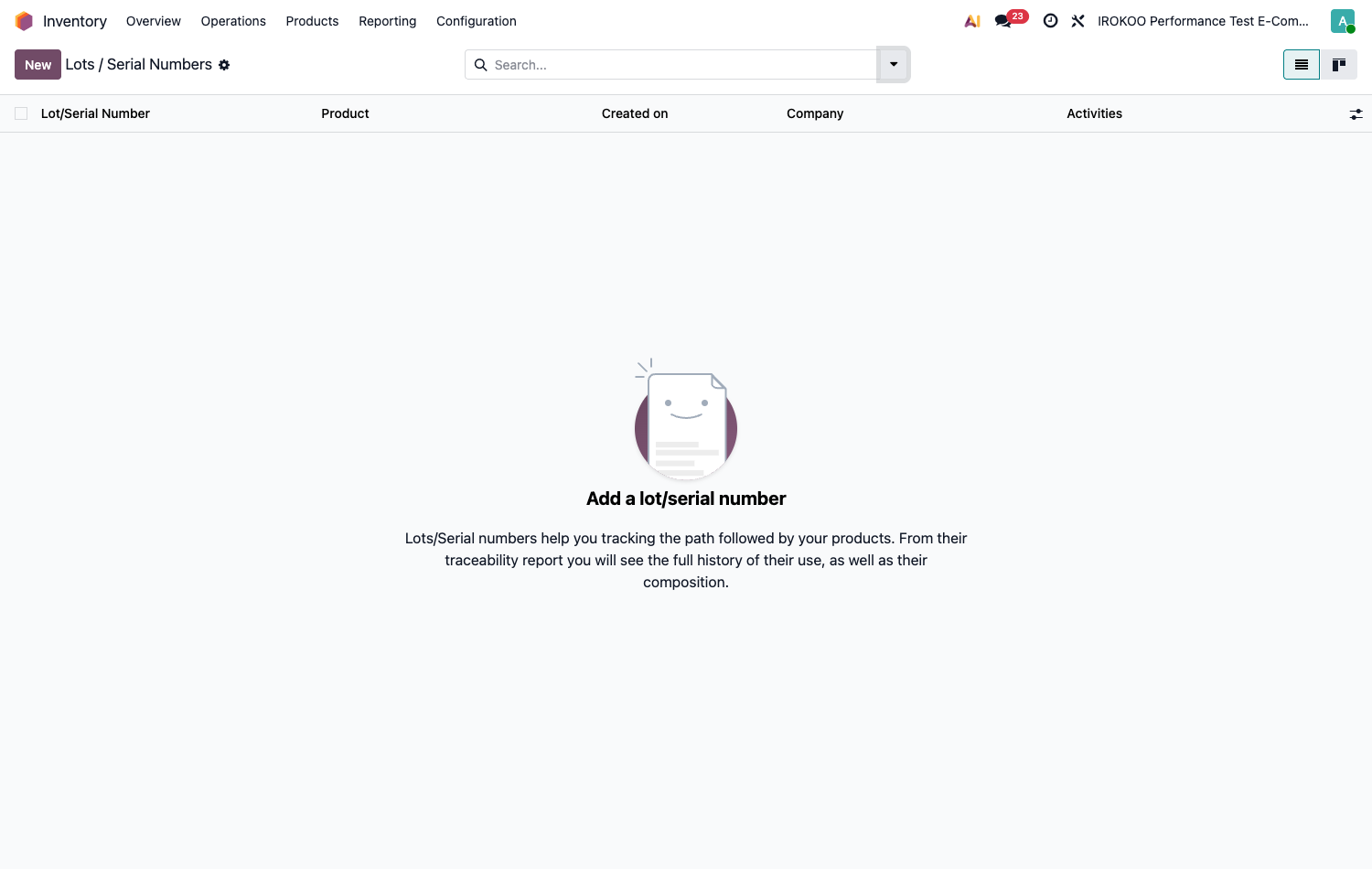
To reconstruct the history of a lot, open Inventory › Products › Lots / Serial Numbers, select the lot then click the Traceability smart button.
Note
Traceability is a regulatory obligation in food, pharmaceuticals and aeronautics. It also determines your ability to confine a product recall to a few customers rather than to the whole customer base.
Valuing stock
Valuing means turning the quantities held into a financial value: the one that appears in the assets of the balance sheet. Two decisions govern it: how the unit cost is established, and when the accounting entry is produced. They are taken with the accountant.
What gives an incoming movement its value
Contrary to a widespread idea, the value of incoming goods is not simply the price on the order. Odoo looks for the most reliable information available, and works down a cascade of sources until it finds something with which to value the quantity received.
| 1 | Manual correction entered on the movement, if there is one. |
| ↓ | if quantity remains to be valued |
| 2 | Vendor bill: the amount actually billed. |
| ↓ | if quantity remains to be valued |
| 3 | Manufacturing order: the cost of the components and the operations. |
| ↓ | if quantity remains to be valued |
| 4 | Purchase order: the negotiated price, before billing. |
| ↓ | if quantity remains to be valued |
| 5 | Customer return: the value of the original outgoing movement. |
| ↓ | if quantity remains to be valued |
| 6 | Product cost: the value carried by the product record. |
| + | Landed costs: transport, customs, insurance, added on top. |
The practical consequence
The bill takes precedence over the order. A receipt valued at the purchase order price is revalued when the vendor bill arrives with a different amount , and the difference falls on the value of the remaining stock, not on what has already left.
That is what explains how a stock value can move without any goods having circulated: it was enough for a bill to be posted.
Point d'attention
Do not validate a purchase order at zero price. A line at zero is information like any other for the cascade: Odoo takes it and values the receipt at zero. It does not fall back on the cost from the product record, because the quantity has already found a source.
The consequences differ according to the method:
- in average cost, the average is pulled down: receiving a hundred units at zero on a stock of a hundred units at €10 brings the cost down to €5;
- in FIFO, a layer at zero is created: the units leaving it will be counted at no cost, and the margin on those sales will appear whole;
- in standard price, the product cost does not move, but the entire amount ends up in the price difference, which makes that account unreadable.
The harm lasts: the distorted cost serves as the basis for the following computations, and spreads to the later receipts and deliveries.
Astuce
When a price is genuinely unknown (a sample, free goods, a donation) enter an approximate value on the order line all the same. A reasonable estimate is better than a zero, and the vendor bill will correct the amount afterwards if it carries one.
For goods that truly have no cost, the clean way is an inventory adjustment, which brings the quantity in without going through a valued order.
Choosing the costing method
The Costing Method determines how the unit cost is established and, through it, what the remaining stock is worth.
| Method | Principle |
|---|---|
| Standard Price | The cost is a value set by hand on the product record. No movement recomputes it. The differences with the price actually paid are recognised separately, on a dedicated account. |
| Average Cost (AVCO) | The cost is recomputed at each receipt, in proportion to the quantities. It smooths out variations in purchase price. |
| First In First Out (FIFO) | Each receipt forms a layer that keeps its price. Outgoing movements consume the layers in order of arrival. |
The same stock, three values
Let us follow a product over three movements. It is bought twice, at different prices, then partly sold. Its standard cost has been set at €12 on its record.
| Movement | Stock | Standard price | AVCO | FIFO |
|---|---|---|---|---|
| Receipt of 10 units, billed at €10 each | 10 | €120 | €100 | €100 |
| Receipt of 10 units, billed at €20 each | 20 | €240 | €300 | €300 |
| Delivery of 15 units | 5 | €60 | €75 | €100 |
| Unit cost after these movements | €12 | €15 | €20 |
The columns read as follows:
- Standard price: everything is counted at €12, on the way in as on the way out, whatever the price billed. The 5 remaining units are therefore worth 5 × €12. The difference with the €300 actually paid is recognised on the price difference account.
- AVCO: after the second receipt, the cost becomes the average of the two purchases: €300 ÷ 20 = €15. The delivery is counted at that cost, and the 5 remaining units are worth 5 × €15.
- FIFO: the 15 units shipped are taken in order of arrival: the first 10 at €10, then 5 at €20. Only 5 units from the second receipt remain, valued at €20 each.
Same goods, same bills, same quantity on the shelf , and anywhere from €60 to €100 on the balance sheet. The choice of method is therefore not a matter of presentation: it changes the accounting result and the margin shown on sales.
Standard price
The cost is a decision, not an observation: you set it on the product record, and it only moves if you change it. Incoming and outgoing movements are counted at that value, whatever the price actually billed.
The difference between the price paid and the cost retained does not disappear for all that: it is recognised on the price difference account, where it can be read and analysed separately. That is precisely the point of the method: to isolate the drift in purchase prices instead of diluting it in the value of the stock.
When to choose it. A production whose theoretical cost price is known and which you want to compare with the actual one. A catalogue of components with stable prices. A need for predictable costs for margin computation.
Point d'attention
Changing the cost on the product record does not only affect the movements to come: Odoo revalues the stock held and records the operation, traced with the old value, the new one and its author. On a live database, a cost revision is therefore an accounting act, to be planned and dated.
Astuce
This method only makes sense if someone revises the costs periodically. A standard price left as it is for two years gives a false stock value and an unreadable difference account. Set the revision frequency from the moment you go live.
Average cost (AVCO)
At each receipt, Odoo recomputes the cost as the weighted average of what is held and what has arrived. Outgoing movements are counted at that cost, but do not change it: only receipts move it.
An increase in purchase price therefore feeds through gradually, damped by the stock already held. Receiving a hundred units at €20 while holding a thousand at €10 only brings the cost to €10.90.
When to choose it. The most common case. Interchangeable items, bought regularly at prices that fluctuate moderately, where it is neither useful nor possible to distinguish one supply from another.
Note
Average cost is sensitive to small stocks. On an item of which only one unit is left, a receipt at an unusual price moves the cost by half. The smoothing effect assumes a quantity held that is significant against the quantities received.
First in first out (FIFO)
Each receipt forms a layer, which keeps its entry price. Outgoing movements consume the layers in order of arrival: the oldest first, then the next.
The remaining stock is therefore valued at the most recent prices, which makes this the method closest to economic reality , and the only one to give, in a period of rising prices, a balance sheet value consistent with the replacement cost.
When to choose it. Goods with volatile prices, where the gap between supplies is significant. An accounting or tax requirement to track by layers. Products for which you want the margin shown to reflect the real cost of what has been sold.
Note
The tracking is heavier: Odoo maintains the layers and their remainders, which makes the history bulkier. In return, the value of each outgoing movement can be justified unit by unit.
Point d'attention
In FIFO, the cost shown on the product record is an indicator recomputed from the remaining layers, not a value you set. Changing it by hand has no effect on the valuation, which stays governed by the layers.
Point d'attention
The method is not to be changed lightly on a database already in use. Moving from one method to another means reworking the existing valuation, an operation conducted with the accountant and dated precisely.
Choosing when the entry is made
The Inventory Valuation decides when accounting records the stock variations.
| Mode | Behaviour |
|---|---|
| Periodic (at closing) | No entry is produced as movements occur. The stock value is tracked in Inventory, and an adjustment entry is posted at the closing of the period. |
| Perpetual (at invoicing) | Entries are produced as you go, as the purchase and sales invoices are posted. The stock account reflects the value at all times. |
Note
Perpetual mode hinges on the invoices, not on the physical movements. Receiving goods therefore produces no entry as long as the vendor bill is not posted: it is the bill that carries the final amount.
Point d'attention
In perpetual mode, every posted invoice writes into the stock accounts. The choice of mode and of accounts is irreversible in practice and must be made with the accountant, before going live.
Setting it up
The two settings are made on the product category, which also carries the accounts.
- Open Inventory › Configuration › Products › Categories.
- Select the category.
- Fill in the Costing Method: Standard Price, Average Cost (AVCO) or First In First Out (FIFO).
- Fill in the Inventory Valuation: Periodic (at closing) or Perpetual (at invoicing).
- In perpetual valuation, check the Stock Account and the Stock Variation.
- In Standard Price combined with perpetual valuation, a Price Difference Account is added: fill that one in as well.
- Save.
Astuce
Group into a single category the products that share an accounting treatment, not those that look alike in the catalogue. Resold goods and in-house manufacturing belong to different accounts, even if they address the same customers.
Valuing by lot
The Valuation by Lot/Serial option on the product record refines the computation: each lot keeps its own value, instead of being merged into the product cost.
It is justified when the lots have genuinely different entry costs: vintages, supplies from distinct origins, materials whose price varies sharply.
Note
It assumes traceability by lots is activated. An untracked product cannot be valued by lot: the setting disappears from its record.
What moves the value
Four families of events change the value of the stock.
| Event | Effect |
|---|---|
| An incoming movement | Adds the value determined by the cascade described above, and recomputes the unit cost in AVCO as in FIFO. |
| An outgoing movement | Removes the corresponding value: at average cost, at the oldest layer, or at standard price depending on the method. |
| A vendor bill | Revalues the receipts it covers, if its amount differs from the price ordered. |
| An inventory adjustment | Recognises a quantity discrepancy and the corresponding value. |
The case of negative stock
Odoo does not forbid shipping goods it does not hold. Validating a delivery with no stock available works: the quantity goes negative, and nothing stands in the way.
That flexibility is useful (it lets you ship without waiting for a forgotten receipt to be entered) but it has a price, and that price falls precisely on valuation.
Point d'attention
In average cost, the weighted average stops being an average. As long as the quantity is negative, outgoing movements are counted at the last known cost; and at the first receipt that brings the stock back to positive, Odoo replaces the average cost with the price of that receipt instead of averaging it in. The accumulated history is lost: a single receipt at an atypical price then sets the cost of the product.
In FIFO, there is no layer left to consume. Outgoing movements are valued at the cost carried by the product record, for want of anything better, and the gap with reality is only absorbed at the following receipts.
The consequences go beyond valuation. Negative stock distorts the computation of needs, since replenishment starts from a quantity that does not exist; it makes the physical count hard to reconcile; and it hides the original error, which is almost always a receipt not entered or an outgoing movement recorded twice.
Astuce
Watch negative quantities rather than trying to forbid them: a filter on stock below zero, consulted every week, lets you trace back to the missing operation while it can still be identified. After a few weeks, nobody knows any more what happened.
To this are added the landed costs (transport, customs, insurance) which spread a cost invoice over the receipts concerned and are added to the value of the stock. They assume the Landed Costs option is active.
Note
Goods held in consignment, on behalf of a third party, are not valued: they take up space without appearing in the assets, since they do not belong to the company.
Analysing
Built-in reports
The Reporting menu of Inventory gives access to the standard analyses.
| Report | What it shows |
|---|---|
| Stock | The quantities held per product, with the on-hand, reserved and forecast figures. |
| Locations | The detail of the stock location by location, down to the lot. This is the view to use to find out where goods are. |
| Moves History | The detail of each incoming and outgoing movement, line by line: which product, which quantity, from where to where, when, under which document. |
| Moves Analysis | The same data aggregated, to be crossed by period, product, category or operation type. This is the view of trends, where the previous one is the view of facts. |
| Performance | The indicators of lead time compliance and service quality. |
Note
Locations only appears once storage locations or consignment have been activated: without them, stock is known by warehouse and the view would have nothing to show. Performance belongs to the Enterprise edition and is only displayed in developer mode.
Astuce
To answer "where is this item?", take Locations. For "what happened to this item?", take Moves History. For "how are our outgoing movements evolving?", take Moves Analysis. These three questions come up constantly and call for three different screens.
Logistics dashboards
Three ready-to-use dashboards complete these reports.
- Open the Dashboards application.
- In the left-hand panel, select the Logistics section.
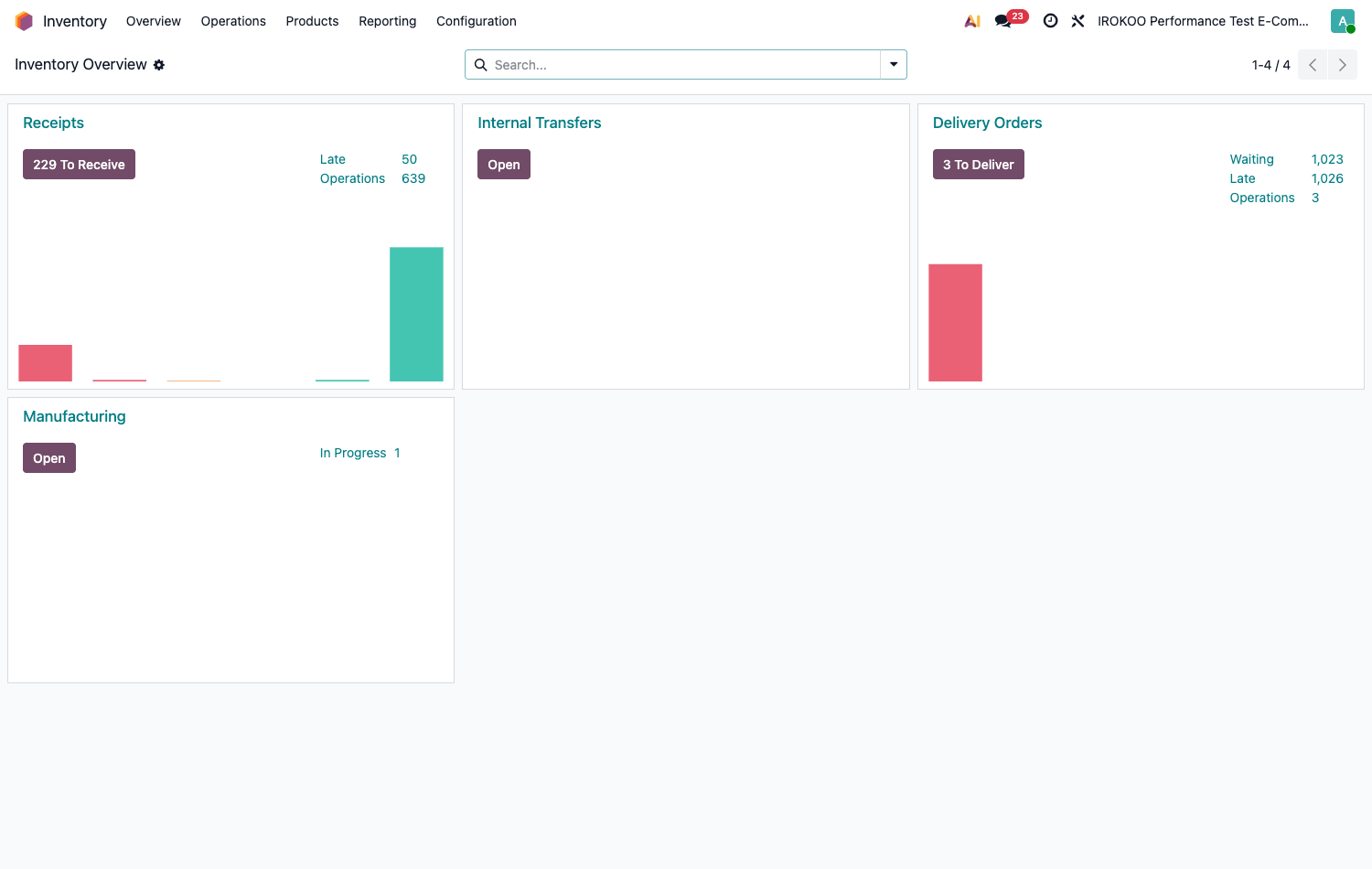
- Choose the dashboard you want: - Warehouse Daily Operations: progress of the tasks and of the scheduled activities; - Operation analysis: logistics efficiency indicators; - Warehouse Metrics: stock value and quantity.
Note
Warehouse Daily Operations is visible to any Inventory user; Operation analysis and Warehouse Metrics are reserved for administrator access. The rights are set in the Dashboards application.
Key points
- Define the warehouse structure before entering the first movement.
- Only add receipt or delivery steps where a real check takes place.
- Fill in realistic lead times: they govern all the automatic triggers.
- Prefer regular cyclic counts to a single annual inventory.
- Set the valuation method with the accountant, before going live.