Artificial intelligence
À l'issue de ce chapitre
- place the four levels of intelligent assistance and know which one answers which need;
- check the technical prerequisites before opening usage up to the teams;
- create an agent, give it source documents and put it to the test;
- entrust a decision to a server action, knowing what it does and does not control.
Odoo 19 builds artificial-intelligence assistance into several places in the software. These are not variants of one and the same feature: they have neither the same prerequisites, nor the same degree of autonomy, nor the same consequences when they get it wrong. This chapter tells them apart before detailing the ones that are configured.
The four levels of assistance
| Level | What it does, and where it is covered |
|---|---|
| Writing assistance | Writes or rephrases a text on request, in a field or a message. The user reads it over and validates before anything is saved. See section 4.3.2. |
| AI Field | A field whose value is computed by the assistant from the other data on the record, across a whole table. It is set up with Studio; the procedure is in chapitre 9. |
| Agent | An interlocutor configured for a domain, with its own instructions, its reference documents and its tools. It answers, it does not act of its own accord. |
| AI server action | Decides on its own which operations to call on a record, and executes them. This is the only level where the assistant decides on an operation and applies it without review. |
The gap between the last two is the one that matters: an agent proposes an answer that a human reads, a server action applies a decision that nobody sees go by. The precautions are not the same.
The prerequisites
Three distinct conditions, to be checked in this order.
One clarification first, because it explains what follows: the assistance rests on two modules both named AI, and they do not install the same way.
| Module | Installation |
|---|---|
| The assistance foundation | Installs by itself, provided the server supplies the PostgreSQL extension described below. It is the one that brings writing assistance, AI fields and AI server actions. It does not appear in the list of applications. |
| The AI application | Does not install by itself and must be added by hand. It brings no new capability: it provides the screens for configuring agents, topics and default prompts. |
In other words, a database may perfectly well offer writing assistance without any AI menu being visible: the foundation is there, the application is not.
The PostgreSQL extension
Agents index their reference documents so as to be able to refer to them. That indexing relies on
the PostgreSQL extension vector, which the server must supply. Odoo checks before
installing: the assistance foundation flatly refuses to install if the extension is missing. On
automatic installation it abstains with no message and no visible trace; on manual installation the
operation fails with an error.
Note
The point does not arise on Odoo Online, where the extension is supplied. On odoo.sh and on-premise hosting, this is the question to put to the host or the system administrator before any other. Without the extension, no assistance feature is available: neither the agents, nor writing assistance, nor AI fields. This is not a crippled feature, it is a module that does not install.
The provider access key
Odoo does not host a model: it calls an outside service (OpenAI or Google) and passes it the elements needed for the request. That call requires an access key, whose conditions depend on the hosting. The procedure is in section 3.3.4.
Point d'attention
What this means in practice: the data sent in an assistance request leaves your database and passes through a third party. The point deserves to be settled before opening usage up to the teams, particularly on documents that name individuals or are covered by a confidentiality undertaking.
The application
The writing-assistance features are used without installing anything. Configuring agents, topics or default prompts, on the other hand, requires adding the application, which never arrives on its own.
- Open Apps.
- Search for
AI. The application presents itself as an ordinary application, with no need to remove the default filter. - Click Activate.
- An AI menu appears, carrying the Agents entry. The Configuration entry, which gives access to the access keys and the default prompts, is only visible to a settings administrator.
Point d'attention
Installing the application moves the access keys. They leave the integrations block of the General Settings described in section 3.3.4 to join the AI pane of the settings, from then on reachable through AI › Configuration › Settings. A key already entered is not lost: it is its location that changes.
The agents
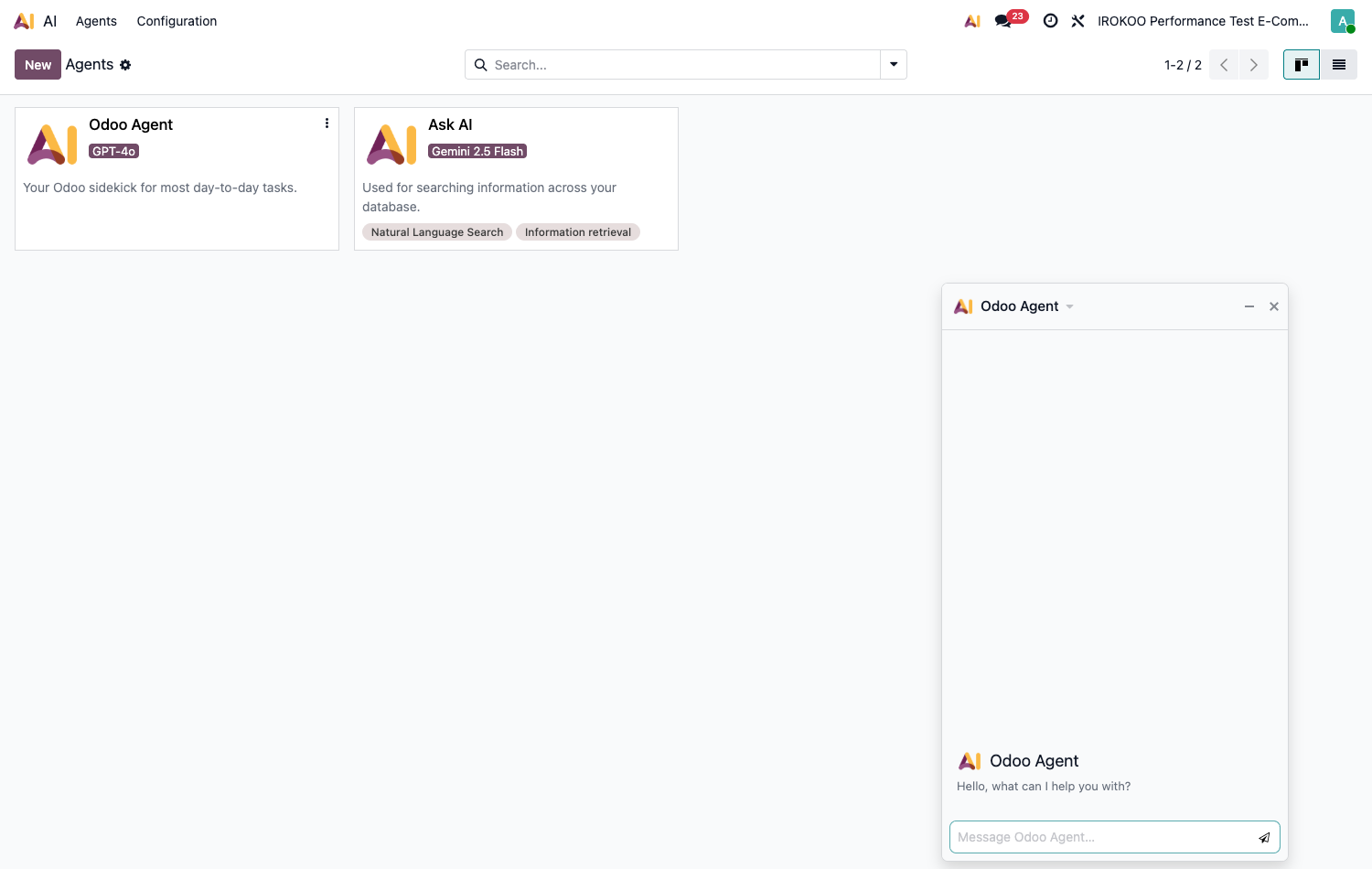
An agent is an interlocutor configured for a specific use. It differs from the generic assistant in three ways: a permanent instruction that frames its answers, reference documents it relies on, and topics that give it tools.
Creating an agent
- Open AI › Agents › Agents.
- Click New.
- Fill in the Agent Name, then the subtitle placed just below it, which sums the agent up for its users. This field has no label: it is recognised by its example text.
- Choose the LLM Model from those of the configured providers.
- Set the Response Style: Analytical, Balanced or Creative.
- Write the System Prompt: the permanent instruction that frames the role and the tone.
- Save.
Note
The Response Style disappears from the form on GPT-5 generation models, which do not expose it. The field is not removed: it simply stops being offered as long as that model is selected.
Point d'attention
Models age. A model withdrawn by its provider remains selectable on agents already configured, but every request then fails with a message stating that it is no longer available and that a more recent one must be chosen. An agent that has been in service for a long time deserves a check of its LLM Model before concluding there is a fault.
Giving it reference documents
The Sources tab gathers the documents the agent relies on: catalogue, terms and conditions, internal procedure, website page.
- Open the agent's Sources tab.
- Click Add a source and choose a file or a web address.
- Wait for the indexing.
Each row carries a status:
| Status | Meaning |
|---|---|
| Processing | The document is being indexed. It is not usable yet. |
| Indexed | The document is available. The row's toggle allows it to be taken out of scope without deleting it. |
| Failed | Indexing failed. The detail of the error is kept on the row, and a Retry button restarts the operation. |
The Reprocess button re-indexes a source already processed: it is for web addresses, whose content changes without Odoo being told. An attached file does not need it, its content being fixed.
Astuce
The Restrict to Sources box confines the agent to its documents: it only answers from them. That is the setting to keep when accuracy matters more than coverage: a support agent that must quote the procedure, not invent it.
The topics
A topic is a skill: a set of detailed instructions together with the tools needed to exercise it. It is then attached to one or more agents, which avoids writing everything in the system prompt and allows the same skill to be reused elsewhere.
Odoo ships some. The list opened by AI › Agents › Topics is not empty on a fresh database: the installed modules deposit their topics there, with their instructions and their tools already attached.
| Shipped topic | What it brings |
|---|---|
| Natural Language Search | Interprets a request phrased in plain language and opens the matching Odoo view, filters and groupings included. |
| Information retrieval | Goes and fetches information from the data models to answer a question. |
| Create Leads | Assists with lead creation. It only appears if CRM is installed in addition to the AI application. |
Opening one of them shows what a finished topic is: several pages of instructions, setting out the rules to respect, the expected formats, the forbidden sequences and the fallback cases , and a dozen attached tools, of the AI: Search or AI: Get Fields kind.
Astuce
Before writing a topic, open a shipped one and read its instructions. They show the level of precision the exercise calls for: what you find there is not a general instruction but a procedure, with its guarantees and its prohibitions. It is also the best way to understand what the mechanism can do before investing time in it.
Creating a topic.
- Open AI › Agents › Topics.
- Click New.
- Fill in the Title, then the unlabelled subtitle placed below it, which sums the skill up in one line.
- Write the Instructions: the procedure to follow, in detail.
- Designate the AI Tools the topic makes available. Odoo ships a dozen, and any server action ticked Use in AI is added to them , see section 20.5.2.
- Save, then attach the topic to the agent you want through its Topics field.
Note
A topic's AI Tools field is reserved for the database administrator. A user allowed to create topics can therefore write their instructions without being able to attach tools to them.
Point d'attention
The topics shipped by Odoo can be modified, but the modifications are lost on version upgrade, as with any record shipped by a module. To adapt a skill lastingly, duplicate the topic rather than writing into the original.
Putting the agent to the test
The Test button, at the top of the form, opens a conversation with the agent as it is configured. It is the way to check the behaviour before exposing it to users: rephrase the same question in several ways, check that it does cite its sources, verify that it refuses what falls outside its scope.
The default prompts
When a user triggers assistance, Odoo calls an agent and passes it an instruction. Neither is fixed: they depend on where the request comes from, and that pairing is configured through rules.
Each rule answers a question of the form "when users do this, which agent should be addressed and with what instruction". Odoo ships seven, one per entry point in the interface: eight if the Knowledge application is installed.
- Open AI › Configuration › Default Prompts.
- Open a rule, or click New.
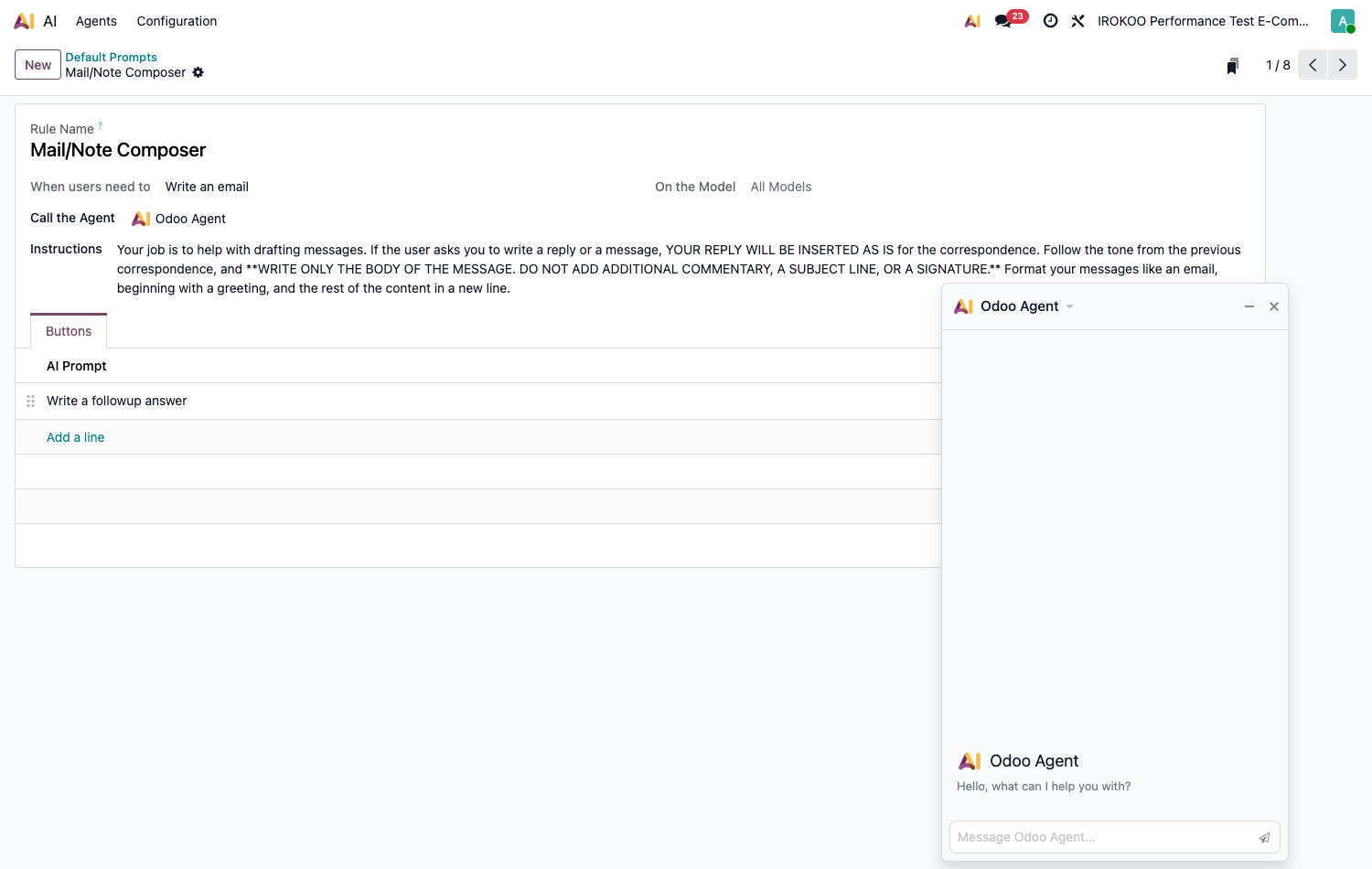
The form holds five fields and one tab:
| Field | Role |
|---|---|
| Rule Name | Internal label, with no effect on behaviour. |
| When users need to | The interface entry point the rule applies to , see the list below. |
| On the Model | Restricts the rule to certain data models. Left empty, it shows All Models and the rule applies everywhere. |
| Call the Agent | The agent called upon. It is through this field that an in-house agent is substituted for Odoo's generic agent. |
| Instructions | The instruction passed to the agent in addition to the user's request. |
| Buttons tab | Ready-made requests, offered to the user in one click. Each row carries the text sent to the agent, and the order of the rows is set by dragging. |
The eight entry points:
| Entry point | Where the user meets it |
|---|---|
| Write in an HTML field | Writing in a rich text field. |
| Rewrite content | Rephrasing of a selected text. |
| Write an email | Composing a message or a note. |
| Convert a prompt in an email | Turning an instruction into a written message, from an email template. |
| Get help on a record | Assistance from a document's chatter. |
| Ask AI for help | General assistance from the top bar. This entry point cannot be restricted by model. |
| Summary Buttons for Voice Transcription Component | Summary of a voice transcription. |
| Write a new Knowledge article | Writing an article. Only appears with the Knowledge application. |
Note
On the eight shipped rules, the Rule Name, the entry point and the model are locked: Odoo forbids changing them. What remains editable is the agent called, the instructions and the buttons, which is enough, since that is where the behaviour is decided.
Astuce
This is where the company tone is set. Rather than asking every user to specify each time that a certain register must be used, that it must stay short and be signed off a certain way, write it once in the Instructions of the Write an email rule. The instruction shipped by Odoo sets the tone of the genre: it requires the model to write only the body of the message, with no subject, no signature and no commentary.
Astuce
The System Rules and Custom Rules filters in the search bar separate what Odoo shipped from what you added. Useful for finding your own rules among the others.
AI-assisted automation
Some decisions cannot be expressed as a fixed condition: classifying an incoming request by its content, choosing a treatment based on free text, extracting a piece of information from a message. A server action assisted by artificial intelligence handles those cases.
The principle
The mechanism keeps the decision and the execution strictly apart.
| Role | Responsibility |
|---|---|
| AI server action | Reads the record and its context, interprets the instruction, and decides which tool to call with which arguments. It modifies no record. |
| Tool | A classic server action carrying all the execution logic: writes, updates, moves. It is the one that applies the business rules. |
Creating a tool
- Activate developer mode.
- Open Settings › Technical › Actions › Server Actions.
- Create the action performing the operation you want, or open an existing action.
- Fill in the Model it operates on.
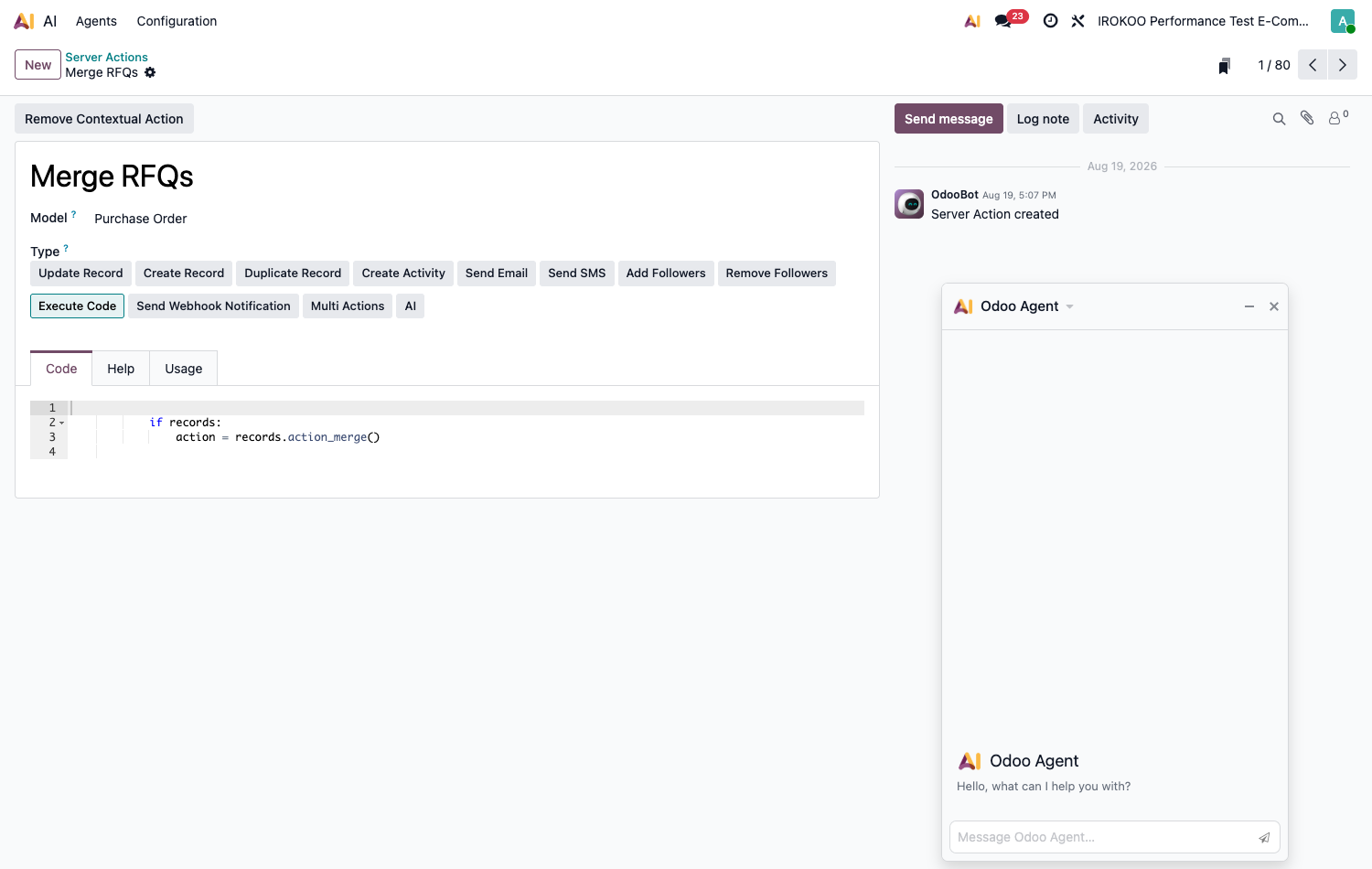
- Choose the Type from the tiles offered. The choice is not free: only certain types can serve as a tool, see the table below.
- Open the Usage tab and tick Use in AI.
- Fill in the free text field that appears to the right of the box, it carries only the example text Short explanation of what this does. It is on that description, and on it alone, that the decision action will choose to call this tool.
- If the type is Execute Code (or Multi Actions chaining a code action), fill in the AI Schema: the JSON-format description of the expected arguments, their type and their constraints. Leave it empty if the tool expects no argument.
- Save.
Note
The Usage tab only appears if the type chosen is eligible. If you cannot find it, it is the Type that needs revisiting.
| Types usable as a tool | Excluded types |
|---|---|
| Execute Code \ Create Record \ Duplicate Record \ Create Activity \ Send Email \ Add Followers \ Remove Followers \ Send Webhook Notification | Send SMS \ AI: a decision action cannot be its own tool |
Two types are eligible under conditions: Update Record, if the value comes from an entered value or a sequence and not from a computed expression, and Multi Actions, on the sole condition that all the actions it chains are themselves eligible.
Point d'attention
A tool called by an AI server action executes unconditionally. There is no implicit safeguard: all the business rules (ceilings, consistency checks, rights verification) must be written explicitly in the tool's code. A tool that assumes the caller has checked something is a dangerous tool.
Creating the decision action
- Still from the server actions, create an action and choose the Type AI.
- Select the Model concerned.
- Open the Prompt tab, which only appears on this type of action.
- Fill in the Tools field: the actions the decision is allowed to call. The list offered is limited to the actions ticked Use in AI and operating on the same model. A tool defined on another model will not appear.
- Write the instruction in the AI Action Prompt field: the context, the decision expected, the criteria to apply.
- Save.
- Finally, attach this action to a trigger, through an automation rule (see chapitre 21) or a button on the document.
Writing the instruction. The field is a rich text editor, with two commands of its own, called up
with / as in email templates:
- Field Selector, subtitled Insert a field: inserts the value of a field of the record being processed. That is how the instruction stays generic while relying on real data.
- Records Selector, subtitled Insert records: designates specific records the decision will be able to consult: a rate table, a reference list.
What you write is not all the model receives. Odoo automatically adds the current date and time, the identity of the record being processed, and the values of the fields your commands inserted. There is therefore no point restating the date in the instruction.
What happens at execution. The action processes the records one by one. For each, it submits the enriched instruction, receives the list of tools to call and executes them in order. The cycle stops when the decision judges it has nothing left to do.
Note
On a model with a chatter, the execution is traced: Odoo logs in the record's chatter the tools called and their arguments, and attributes the changes to an author dedicated to artificial intelligence. That is the only place to read what was actually decided.
Point d'attention
A tool failing does not interrupt the decision: the error is returned to the model as text, and it is up to the model to draw its conclusions. An action may therefore finish normally while part of the work has failed. On a high-stakes process, plan a downstream check rather than relying on the absence of an error message.
Note
Instructions contained in the documents attached to the record are explicitly ignored: the system instruction states that the content of a document serves to understand the subject, never to order an action. A vendor therefore cannot drive your database by slipping a sentence into a PDF.
Two checks block the saving of an inconsistent configuration: ticking Use in AI on an
ineligible type refuses the save with the message
The action '…' cannot be used as an AI tool., and an AI Schema that is not valid
JSON is rejected likewise.
Point d'attention
If one of the tools chosen is restricted to user groups, Odoo shows a warning next to the Tools field. The tool's access control is not applied when the decision calls it: the group restriction protects the button, not the execution.
Note
The artificial-intelligence features belong to the Enterprise edition and require, depending on the hosting, prior configuration of the service access (see section 3.3.4). On odoo.sh and on-premise hosting, the calls to the models are billed by the provider chosen, on its own terms.
Point d'attention
Keep these mechanisms for decisions that cannot be written as conditions. A deterministic rule is faster, cheaper, reproducible and verifiable. Intelligent assistance is justified on free text and uncatalogued cases, not on an amount threshold.
What the assistance does not do
Point d'attention
None of the features described here checks what it produces. A text written, a value computed, a decision taken are plausible proposals, not verified results. The checking remains to be done: by a human at the levels that allow it, by a downstream control at those that do not.